PinkSalmon Cloud Services console
The PinkSalmon Cloud Services console is your starting point for finding your applications, accessing your repositories and creating new applications with SciClick.
Available services and actions depend on your account, your organisation's configuration and your settings. The screenshots below illustrate the interface; the items shown may vary with your access rights.
Sign in to the console
- Open the console address you were given.
- Sign in with your PinkSalmon Cloud account and complete two-factor verification when requested.
- If your user belongs to several accounts, check the account name at the top of the page and switch accounts if needed.
To prepare for your first sign-in or resolve an authentication problem, read the authentication guide.
Home
The Home (Accueil) tab provides shortcuts to applications available in your workspace. Select the icon of the tool you want to open.
The New System (Nouveau Système) action starts the creation of a new SciClick application.
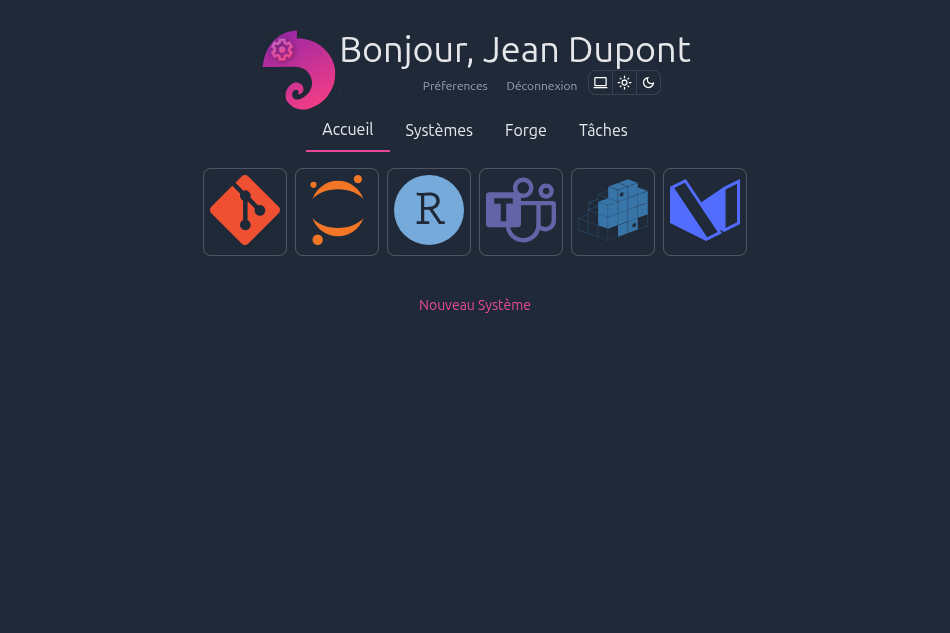
The top bar also provides Preferences, appearance controls and Sign out.
Forge: find your repositories
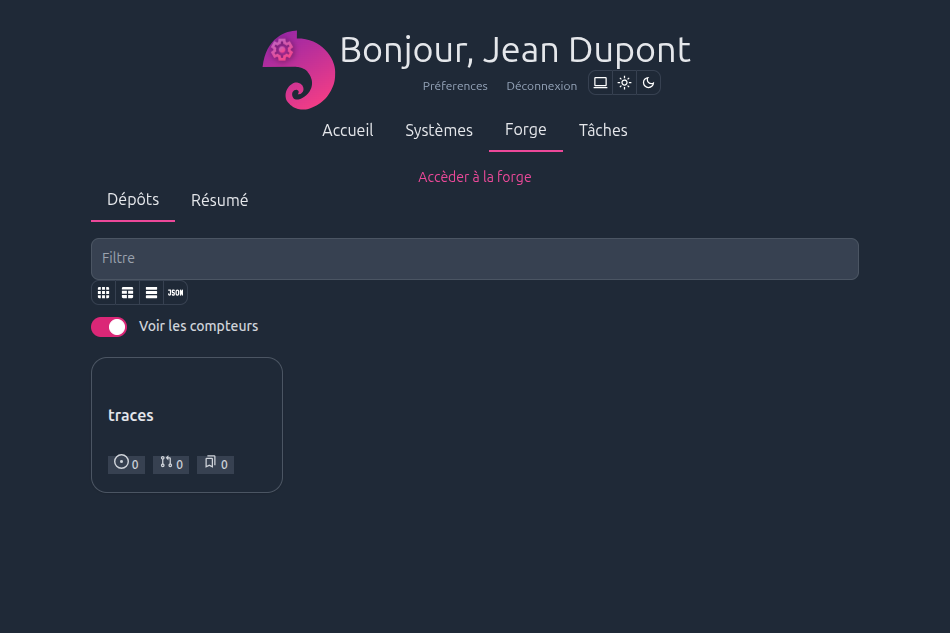
The Forge tab brings together information and access to your code repositories.
- Use Access the forge (Accéder à la forge) to open your forge interface.
- In Repositories (Dépôts), use the Filter (Filtre) field to find a repository in the list.
- Controls below the filter change how results are displayed. Show counters (Voir les compteurs) shows or hides these indicators:
- number of open issues
- number of open requests
- number of releases
To work on code from your workstation, read the code forges overview, then configure Git access over HTTPS or SSH.
Systems: create an environment with SciClick
The Systems (Systèmes) section provides access to:
- A list of SciClick systems, with filters for your systems or the account's public systems.
- The workflow for creating working environments. From the home page, select New System, then choose the environment type that suits your work.
The screenshot shows the first creation step, including these templates:
| Need | Example templates shown |
|---|---|
| Work in a Python environment | Jupyter Python, Cloud9 Python |
| Use R | RStudio, R Shiny |
| Prepare an interface or web page | Simple Web Page, Plotly Dash |
| Start from a repository or development template | Simple Repository, Fortran Application, Rustpad |
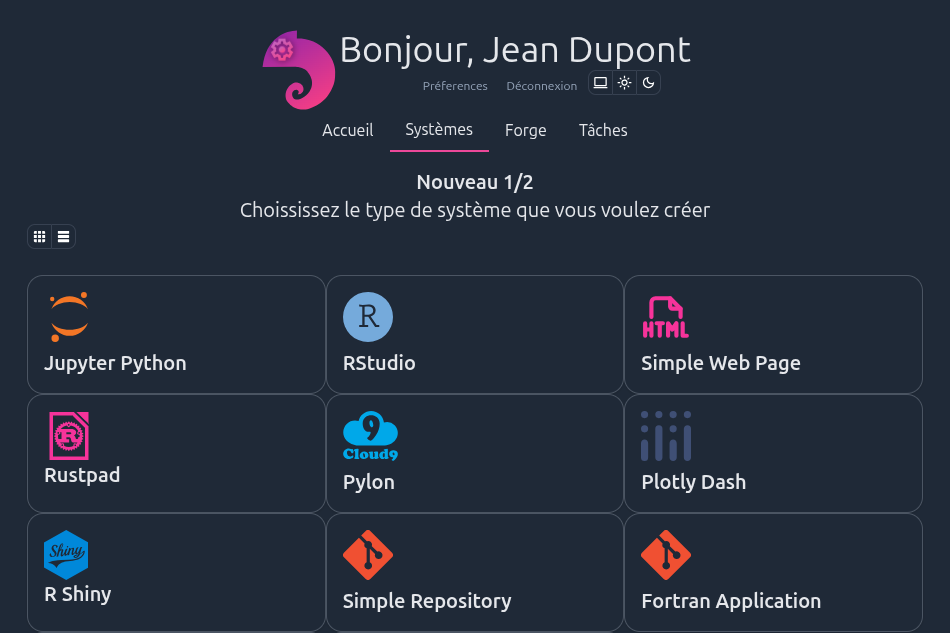
Select a template, then follow the interface steps to configure it. Available templates and required settings depend on your instance.
Before confirming, check that the template and settings meet your needs. For questions about available resources or terms of use, contact your administrator.
Need help?
| Situation | What to do |
|---|---|
| Unable to sign in | Read the authentication guide. |
| Application, repository or template missing | Check the displayed account and organisation, then ask your administrator to check your access. |
| Access denied after opening a service | Ask for your permissions on the service or project to be checked. |
| System creation interrupted or failed | Record the selected template, the step and the displayed message before contacting support. |
Contact your administrator or email contact@pinksalmon.cloud. Include the service, the time of the problem and the action you performed. Hide confidential information in screenshots; never send a password, one-time code, token or private key.