Add a user SSH key to a Forgejo or Gitea forge
This guide shows how to add and verify a user SSH key on a PinkSalmon forge, for example to use Git over SSH.
Prerequisites
You must have a public/private key pair.
If you do not, follow the appropriate SSH key generation guide:
Add the SSH key
Add the key
- Sign in to the PinkSalmon forge.
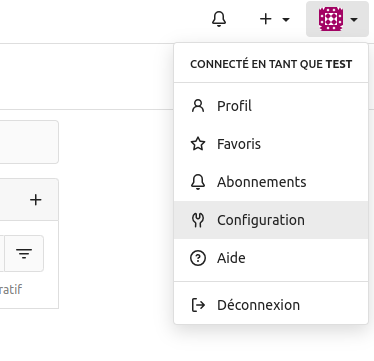
- In the top-right user dropdown, click Settings (
Configurationin the French interface).
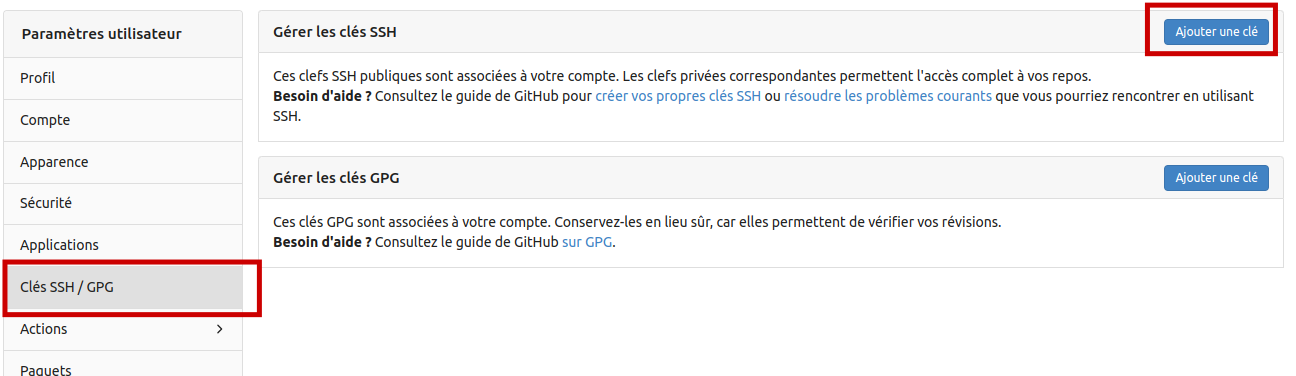
- In the settings on the left, select SSH / GPG Keys (
Clés SSH / GPG), then click Add Key (Ajouter une clé) under Manage SSH Keys (Gérer les clés SSH).
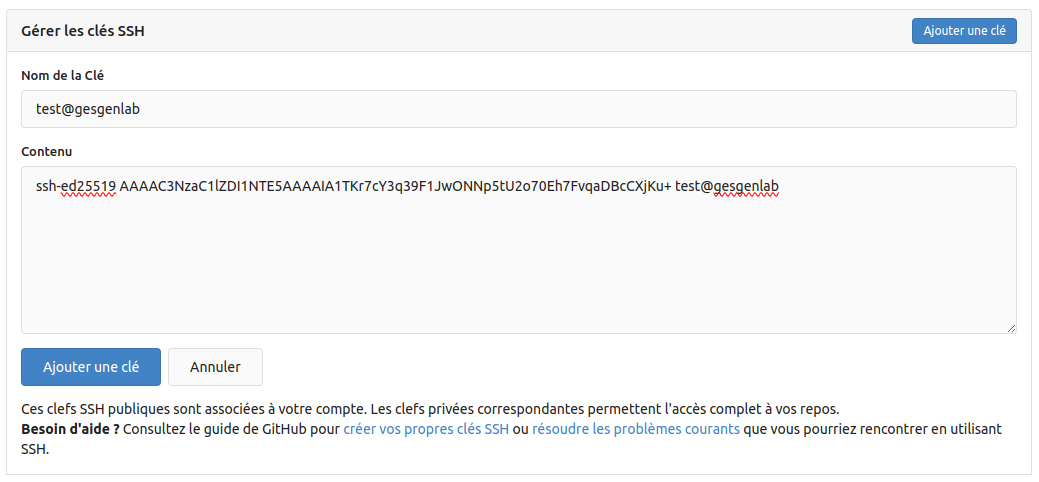
- Open your public key file in a text editor and copy it into Content (
Contenu). Enter a name in Key Name (Nom de la clé) and click Add Key (Ajouter une clé).
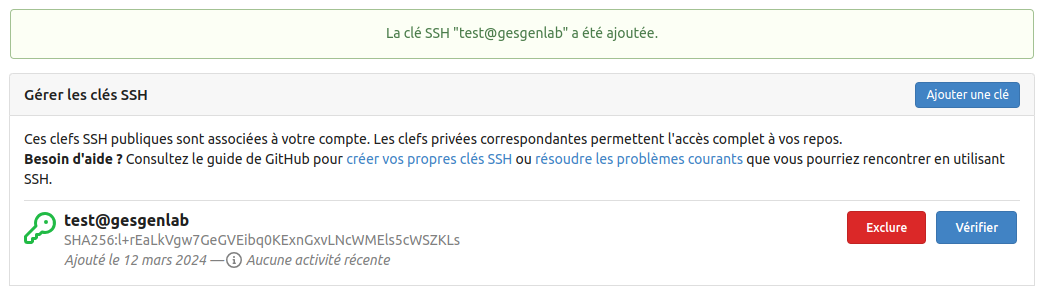
- A confirmation message should appear.
Verify the key
You must then verify this key:
- Click Verify (
Vérifier) beside the key you just created. Once verification starts, complete it promptly: the process expires if you take too long and you will have to restart.
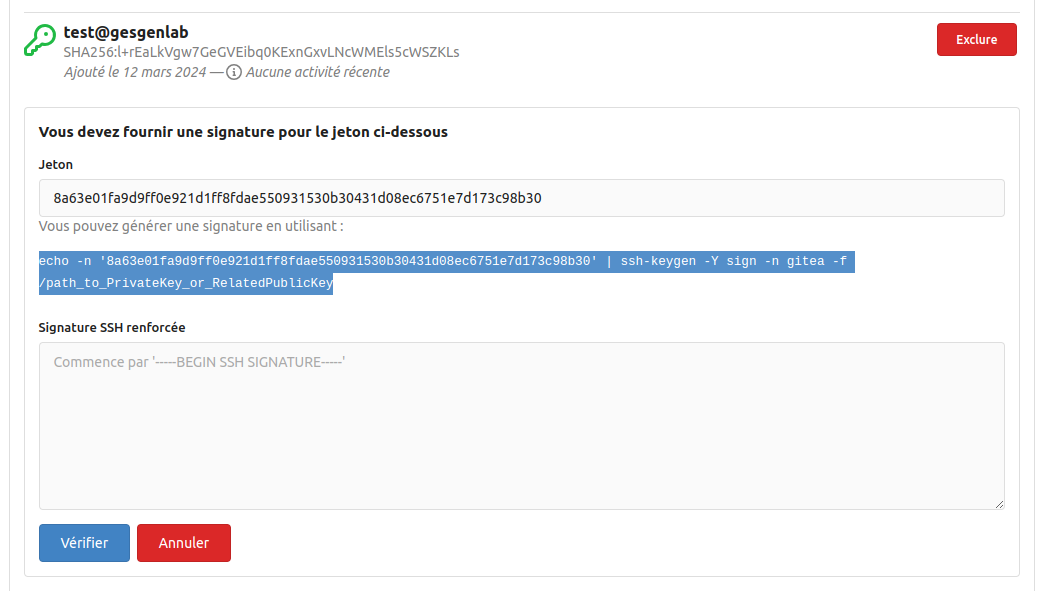
- Copy the provided example, open a terminal and paste it. Update the path to your private key, then run the command.

- Copy the terminal output into Armored SSH Signature (
Signature SSH renforcée) and click Verify (Vérifier).
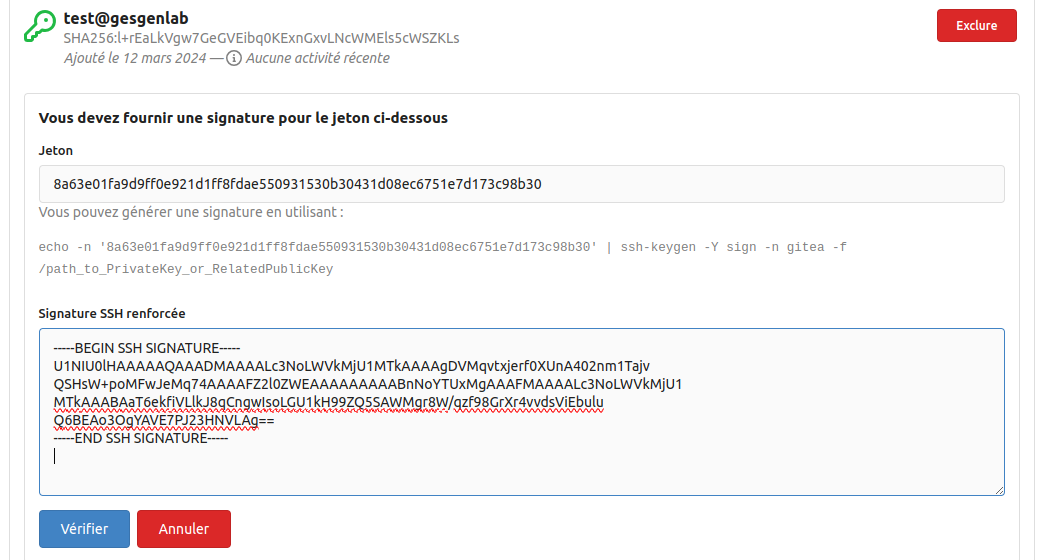
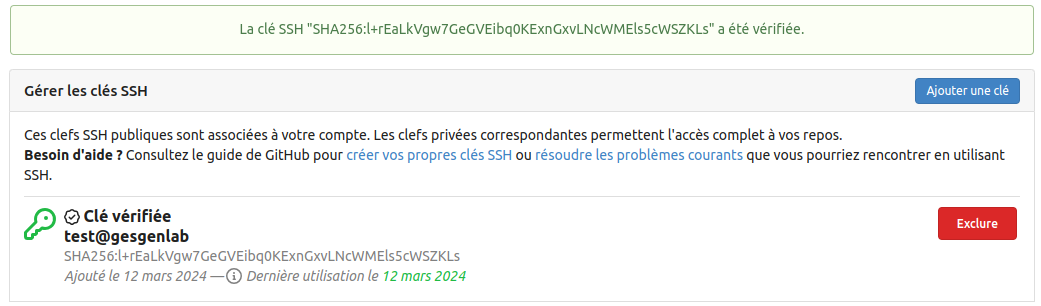
- A confirmation message should appear.