Git access over HTTPS
This guide explains how to clone a PinkSalmon Forgejo or Gitea repository using a personal access token (PAT).
1. Create a personal access token
Sign in to your forge, then follow the Add a personal access token guide.
The token must have the required repository permissions: read to fetch code, write to push changes. Your account must also have the corresponding permissions on that repository.
Store the token securely: Git will use it as a password.
2. Copy the repository's HTTPS URL
Open the repository on the forge, select HTTPS cloning and copy the displayed URL.
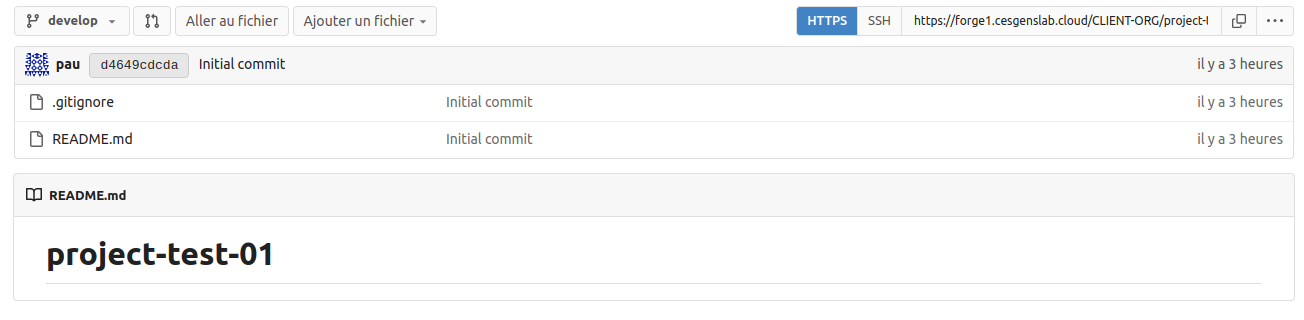
3. Clone the repository
In a terminal, replace REPOSITORY_HTTPS_URL with the copied URL:
When Git asks for credentials, enter:
- Username: your forge username.
- Password: your personal access token.
Depending on the credential manager installed on your workstation, these details may be saved for subsequent operations.
Once cloning is complete, the code is available in a new directory, usually named after the repository.
Troubleshoot access problems
| Problem | Checks |
|---|---|
| Authentication rejected | Use the PAT as the password and check that it is still valid. |
| Repository access denied | Check the URL, your account permissions and the token permissions. |
| Git reuses an old token | Update the forge entry in your workstation's credential manager. |
Keep the token confidential: do not put it in the clone URL, a shared script or a repository. If it is exposed, revoke it in the forge settings and create a new one.
For another connection method, see the SSH access guide.